
Why FPS Drops on a High-End PC (and 9 Real Fixes)
Stutters and FPS dips on a powerful build are almost never the GPU. Here is the diagnostic ladder we run on every machine.
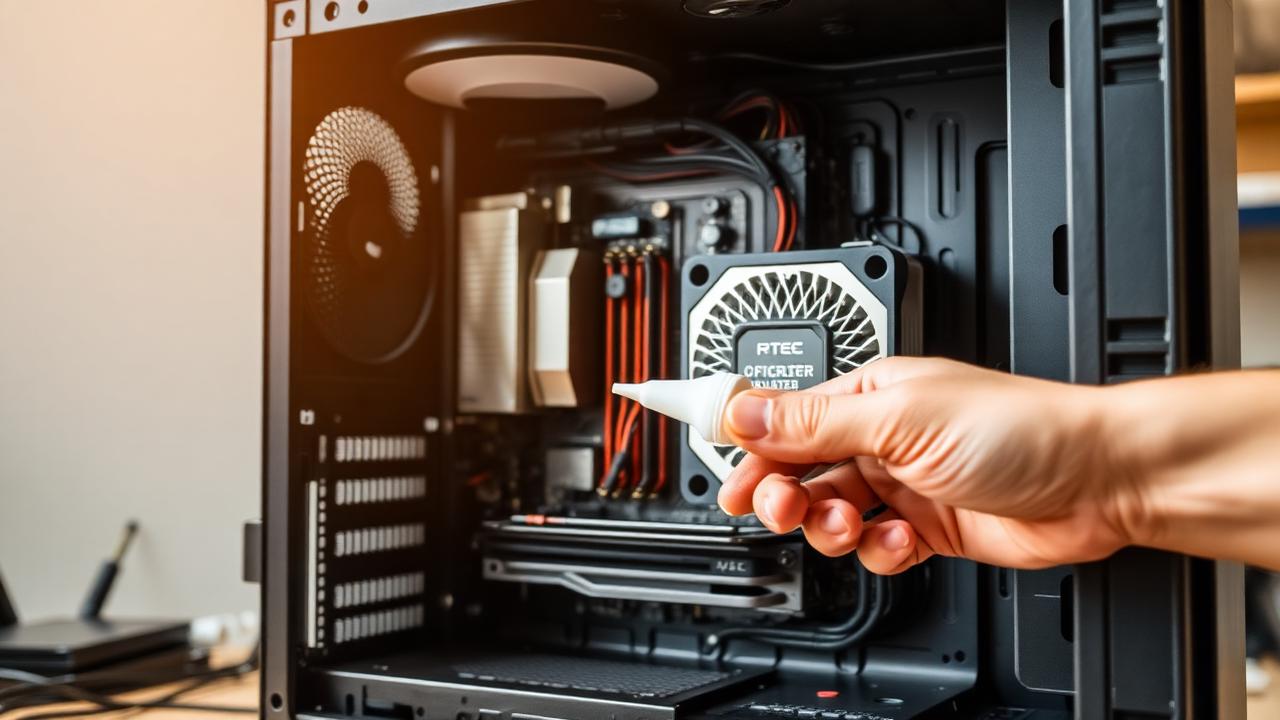
The "expensive PC, awful FPS" paradox
You spent thousands and the framerate is worse than your old build. Frustrating, and almost always a configuration problem, not the hardware.
Run these in order
1. Enable XMP / EXPO
RAM at JEDEC defaults silently kills frame pacing. See RAM speed and FPS.
2. Set Windows power plan to High / Ultimate Performance
Balanced parks cores. Open powercfg.cpl and switch.
3. Disable in-game frame caps and V-Sync (then re-enable G-Sync/FreeSync)
Combining V-Sync + frame cap + G-Sync often produces input lag and false bottlenecks.
4. Update GPU drivers cleanly
Use DDU in safe mode if upgrades have been crashing.
5. Check temperatures
Anything above 90 °C on the CPU or 85 °C on GPU hotspot starts throttling. See thermal throttling.
6. Verify GPU is in the x16 slot
A second GPU slot often runs at x4. Check GPU-Z → Bus Interface.
7. Disable overlays and background apps
Discord, Xbox Game Bar, MSI Mystic Light, overlays cost FPS. Trim them.
8. Reseat RAM in the correct slots
For two sticks on a four-slot board, use A2 + B2 (usually slots 2 & 4).
9. Reinstall the game / verify files
Corrupt shaders are an underrated cause of stutter.
Still seeing dips?
Run the bottleneck calculator and the FPS calculator to confirm whether your hardware should deliver what you are seeing. If reality is below expectation by more than 20%, software is the culprit.
Related reading
Run your own numbers
Open the free bottleneck calculator or estimate FPS with the FPS calculator.